Authentication
Learn how to connect to Alloy's Embedded iPaaS and make requests. If you've read the Quick Start, you can skip this section.
Overview
When connecting to Alloy Embedded, you must authenticate the frontend and backend:
- API Key is needed to authenticate outgoing requests to the Alloy Embedded from your backend server
- JWTs are needed to securely render the Alloy Modal from your application's frontend
Get Your API Keys
You’ll need to login to your Alloy Embedded account and located the API Keys tab under Settings. From here. There are two types of API Keys to generate:
- Development Key
- Production Key
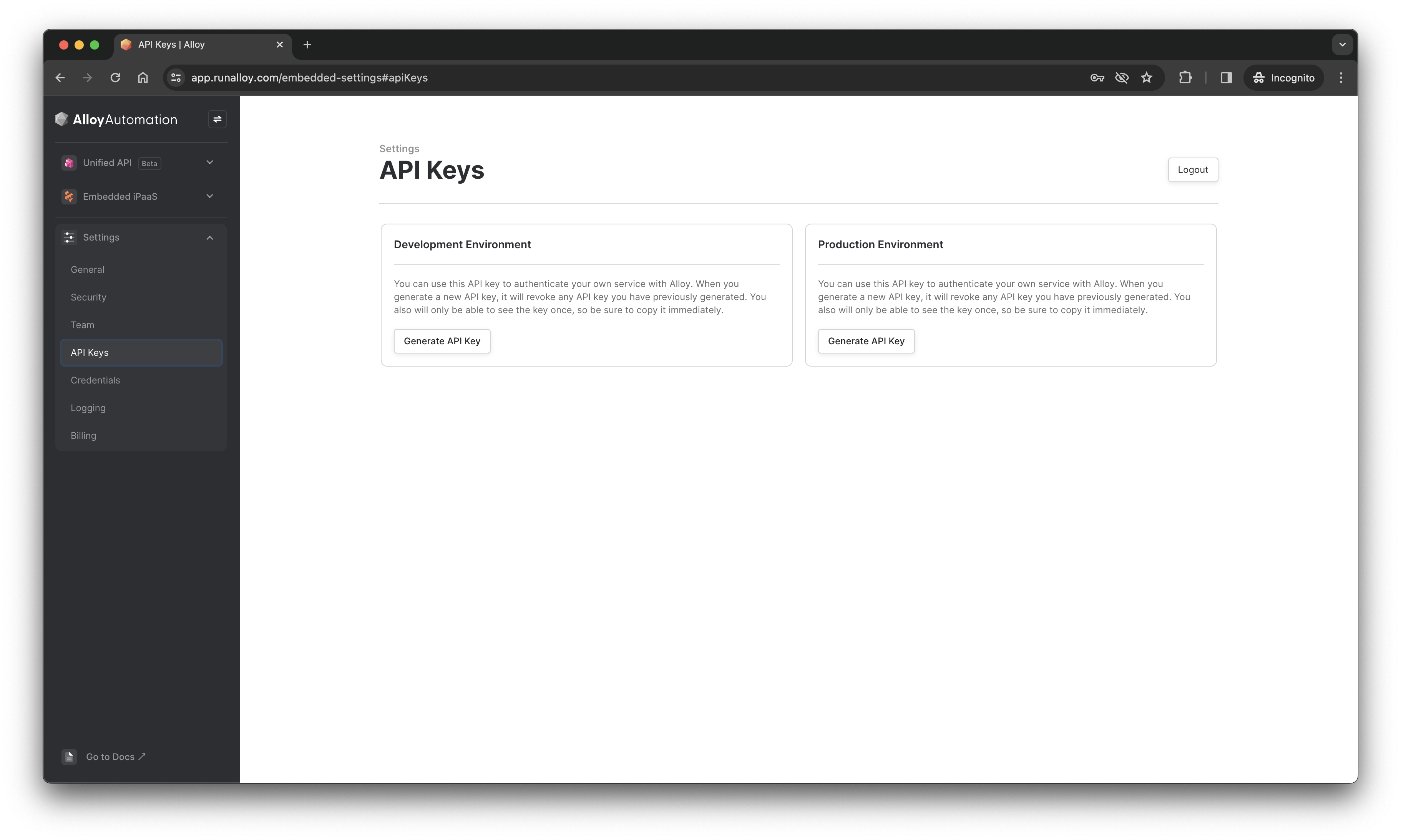
The development and production keys are effectively identical with a minor caveat: users created using the development key will be isolated on development. Because Embedded relies heavily on the concept of users, you can use your development key to generate as many test users as you like without congesting your production environment. When you're ready, you can easily swap keys to production.
Note these keys are intended to be used on the backend only and should never be exposed to customers on the frontend.
Bearer Auth
When making a request to Alloy Embedded, include the key in the Authentication header as a bearer token as seen below.
Sample Request
- cURL
- JavaScript
  curl https://embedded.runalloy.com/2023-12/ENDPOINT_TO_HIT
    -H "Accept: application/json"
    -H "Authorization: Bearer YOUR_API_KEY"
const request = require("request");

request(
  {
    url: "https://embedded.runalloy.com/2023-12/ENDPOINT_TO_HIT",
    headers: {
      Authorization: "Bearer YOUR_API_KEY",
    },
  },
  function (err, res) {
    if (err) {
      console.error(err);
    } else {
      console.log(res.body);
    }
  }
);
User Management
You must first create a user before you can make most API calls to Alloy Embedded. On your backend, first create an end user. An end user represents a tenant in the ISV's system. To get started, we'll need to invoke the POST Create User endpoint. This endpoint will generate a unique userId which we'll use later on.
Make sure to pass along a username in the body. This username must be unique for each user you create.
 curl --request POST \
     --url https://embedded.runalloy.com/2023-12/users \
     --header 'Authorization: bearer YOUR_API_KEY' \
     --header 'accept: application/json' \
     --header 'content-type: application/json' \
     --data '{ "username": "YOUR_USERNAME" }'
This endpoint will return a unique userId as seen in the below response:
{
  "userId": "658c703c524d011f001fe3e4"
}
Installing the Frontend SDK
Now that you've created a user, it's time to connect your application's frontend to the Alloy Embedded API. To do so, use Alloy's Frontend SDK to instantiate the Alloy Modal. The Alloy Modal makes it easy for your users to connect to the Third Party App of their choosing and abstracts away the complexities you'd need to otherwise do yourself (i.e. credential management, redirect URLs, etc).
To install the frontend SDK, install via npm or put the following snippet in the header of your application:
- cURL
- JavaScript
npm install alloy-frontend
<script src="https://cdn.runalloy.com/scripts/embedded.js" type="text/javascript"></script>
With the SDK installed, the next step is to render the Alloy Modal. To show the modal, you'll need to trigger the frontend SDK's authenticate() method.
If you’re interacting with the hosted Frontend SDK from a react app (i.e. you imported the HTML snippet), you can call these methods by invoking window.Alloy.authenticate().
Passing the token to your Frontend
As mentioned above, we require generating a JSON Web Token to securely render the authenticate() method on your frontend. This token can be generated by making an API request to the GET /user/:userId/token endpoint. You must pass a userId as this JWT is specific to a user.
Request
curl --request GET \
     --url https://embedded.runalloy.com/2023-12/user/:userId/token \
     --header 'Accept: application/json' \
     --header 'Authorization: bearer YOUR_API_KEY'
Response
{
  "token": "XXXXXXXX.YYYYYYYYY.ZZZZZZZZ"
}
Call the setToken() endpoint and pass the JWT as the argument. This method authenticates the frontend SDK and allows you to render the modal.
Alloy.setToken("<YOUR_TOKEN>");
Rendering the Modal
Next, call the install() method to prompt your end user to install an integration and its workflows. Once the user has installed, this will create an installation.
This method takes the following arguments:
integrationId: the Id of the integration you want to install. A complete list of integrations available for a user can be found by making a call to the GET List Integrations API.
The callback returns success message in its callback.
Invocation
Alloy.install({
  integrationId: "YOUR_INTEGRATION_ID",
  callback: (data) => {
    console.log(data);
  },
});
Response
{
  "success": true
}
Security
Revoking Keys
You should always closely guard your production key. When you click the Generate button, the production API key will be shown once. You should make sure to securely store this key as it will not be shown again.
If you click the Generate button again, Alloy Embedded will revoke the previous key and generate a new one.
Production keys should be treated with the utmost care. If someone accidentally accesses your production key, they can make requests on behalf of your entire Embedded account. That's why we recommend never sharing this key with anyone else (or using it directly in the browser) and storing it in a secrets manager.
Alloy IP Addresses
Several apps, including many database blocks require you access them only via an IP Whitelist. If you are planning to stream data to a data warehouse or database, you may need to whitelist our IP address.
You can find our static IP address for the Alloy servers here: 3.211.13.53
Wrapping Up
In this article, we looked at how to authenticate requests to Alloy Embedded API and how to securely pass JWTs to the frontend.